A couple of weeks ago I wrote about the idea for an Operating System Agnostic keyboard layout. Using some custom ZMK behaviours that I’d just built it would, at least theoretically, be possible to design a keyboard layout so that the shortcuts for common actions remain the same, no matter which operating systems you’re using.
Since then, I’ve had time to put this theory to the test and I’ve expanded the oskey ZMK behaviours - firstly to make them a bit more usable and secondly because I discovered I needed a bit of extra functionality to accommodate one of the most frequently performed actions - switching between applications!
This is a somewhat simplified version of the current layout I’ve landed on (and which I’m using to write this post):
That’s interactive - so you can delve around and try to make sense of it on your own (or open a full sized version here). Realistically though, it’s using some things that didn’t previously exist in ZMK so probably deserves some explanation.
Base layer
As some preliminary background, and just so you get some familiarity with my basic keyboard setup, let’s look briefly at the base layer.
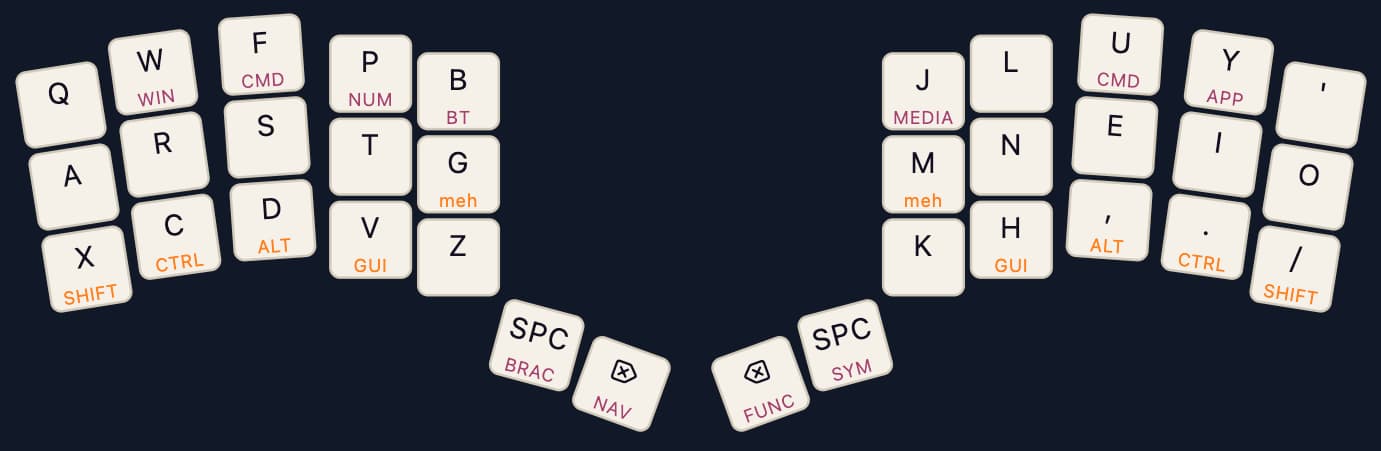
It’s a 34 key Colemak DH layout but that’s not really relevant… all of the OS Agnostic stuff would work on a keyboard with QWERTY layout or a keyboard with fewer/more keys.
I’m using bottom row modifiers since I could never really get HRM working for me (even with timeless mods). These you can see depicted as the hold actions for certain keys (e.g. x, c, d and v) in orange. We leave these on the layout for ad-hoc usage, but ultimately we’re going to try to use these as infrequently as possible.
Instead we have various OS Agnostic layers. The layers are represented as short purple names on some of the keys above (e.g. BT on the b key). These are (almost) all setup using a layer-tap behaviour so the layers are active while holding the keys but a keypress emits the character depicted by the primary legend (in black).
Ok, with that out of the way, let’s talk about how the OS Agnostic stuff works… and we’ll start that with a tour of the BT (aka Bluetooth) layer.
Bluetooth layer
Holding down the B key activates the Bluetooth layer. There’s not a lot going on on this layer, but it is critical to what happens on the other layers.
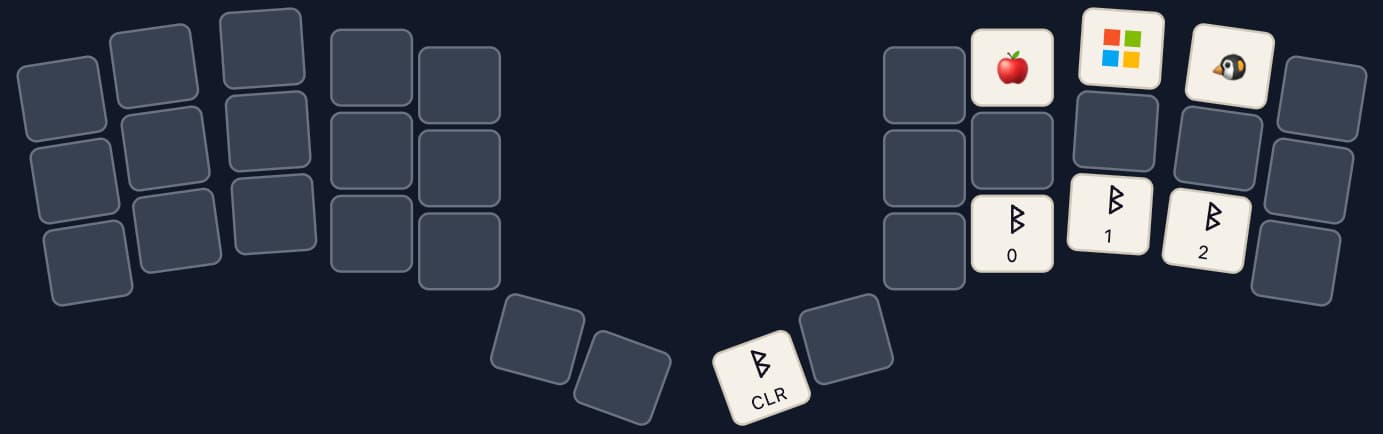
The three middle keys on the top row of the right hand in this layer use the os-selector behaviour to set the current operating system.
In practice, I hardly ever use those keys. They might be useful if pairing with a device you don’t usually use. I’m always paring with the same devices, so I normally just use the bluetooth channele selectors on the bottom row. These keys are wired up to some macros that both change the bluetooth channel and set the operating system.
So for example, the leftmost of these (on my index finger) has this ZMK behaviour:
bt_mac: bt_mac {
    compatible = "zmk,behavior-macro";
    #binding-cells = <0>;
    bindings = <&bt BT_SEL 0>, <&os_sel OS_MAC>;
};
That also happens to be the computer that I use most often, so I’ve set Mac OS as the default OS for oskey when I power on my keyboard.
Command layer
The Command layer will be accessed frequently so I wanted this to be easy to activate. This can be done by holding down the middle finger top row (on either side of the board).
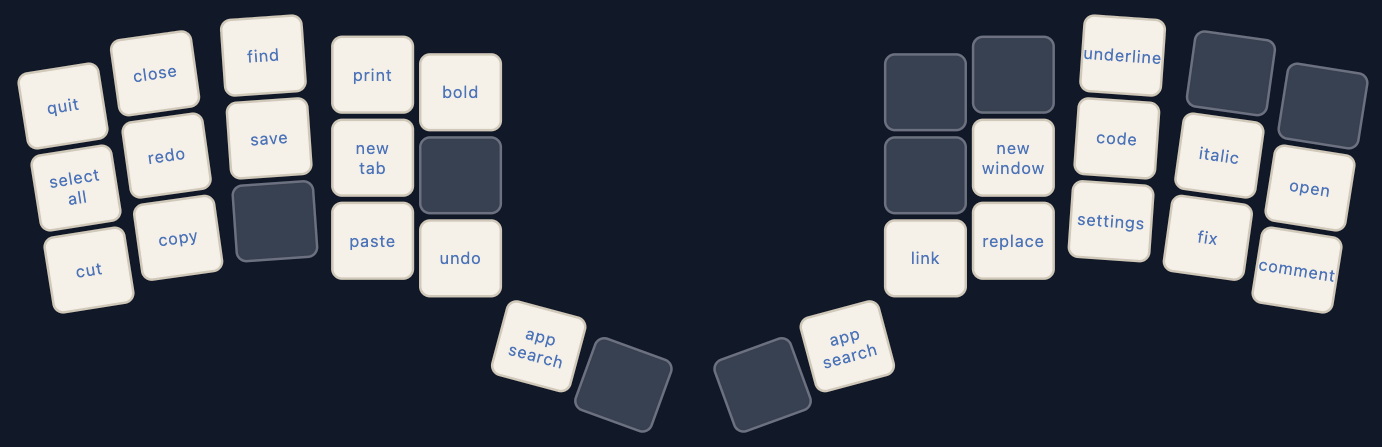
On the command layer we’ve got a bunch of OS agnostic behaviours. These all send different keycodes depending on what operating system is being used (per the selection on the Bluetooth layer).
At the top left, for example, is ‘quit’. The behaviour for this is quite simply &ok_quit. That’s one of over 40 common behaviours defined in oskey. If you were to define it yourself though, this is what it looks like:
ok_quit: os_key_quit {
    compatible = "zmk,behavior-os-key";
    #binding-cells = <0>;
    /*             Win            Mac           Lin  */
    bindings = <&kp LA(F4)>, <&kp LG(Q)>, <&kp LA(F4)>;
};
So on Windows and Linux, it sends Alt + F4 and on Mac OS it sends ⌘ + Q. On all operating systems, the result is to quit the currently active application.
App search, on the space bars, is one I’ve defined in my own keymap but not included in the oskey common behaviours. It’d defined as :
ok_app_search: os_key_app_search {
    compatible = "zmk,behavior-os-key";
    #binding-cells = <0>;
    /*            Win           Mac           Lin  */
    bindings = <&kp LA(SPACE)>, <&kp LG(SPACE)>, <&kp LG(S)>;
};
Alt + Space is the shortcut to activate the Windows Power Toys equivalent of Mac OS Spotlight Search (which is accessed on the Mac via ⌘ + Space). This is precisely the kind of detail I just don’t give a crap about and don’t want to have to think about. For me, no matter what operating system I’m on, if I want to quickly open an app I just hold my command layer key and then press space…
Most of the other commands on the command layer are basically just combining the ⌘ key (on Mac OS) or the Ctrl key (on Windows/Linux) with some letter to perform a common action like Find, Cut, Copy, Paste etc. However again, I don’t want to have to think about whether to press ⌘ or Ctrl - I just press the keys that do Copy always, on every operating system… and text gets copied (the way it should be).
What surprised me about switching to using a command layer rather than shortcuts for these operations is that it felt natural almost immediately and within about 48 hours I’d stopped using the bottom row modifiers for these operations almost entirely. About the only time I still use them is when combining modifiers (like ⌘ + Shift + F for Find All)… mainly because I haven’t yet found where I want to put actions like that on the layout (potentially that could be on another layer… not sure).
Navigation layer
As a software developer, I spend my days navigating text files… and aside from the arrow keys, different operating systems are infuriatingly inconsistent about even these most basic of operations. This is my navigation layer to fix this:
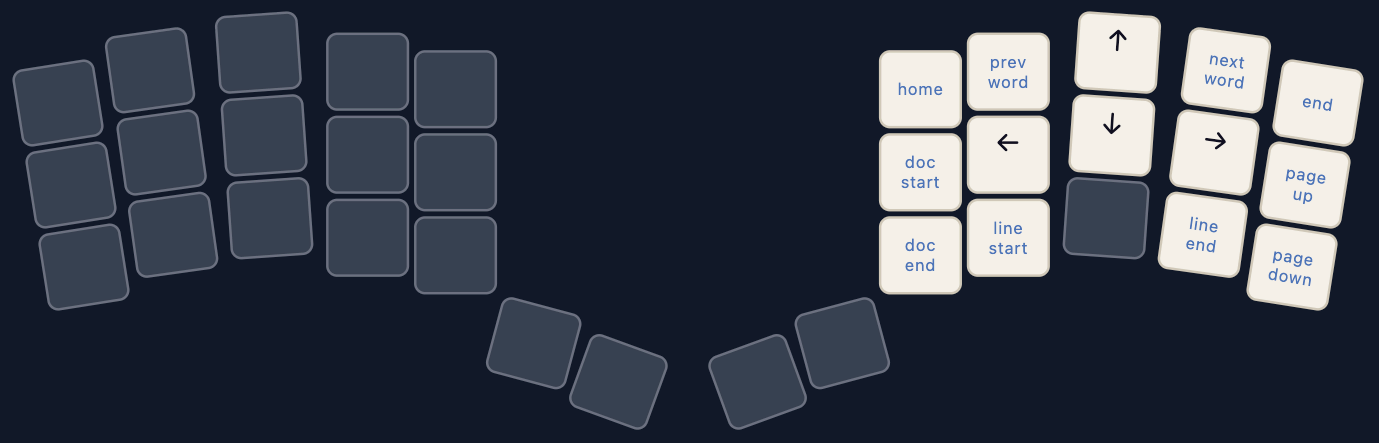
The arrow keys and the home and end keys are using vanilla ZMK &kp behaviours.
All of the other keys are one of the OS agnostic oskey navigation behaviours. These are all described on the oskey docs, so I won’t go into minute detail on each of them here but, again, so nice not to have to think about this when switching between operating systems… I just hold down the thumb key I have mapped to the navigation layer and press the button for the action I want to perform (the same button on every OS).
It is also worth noting that all of the greyed out keys on this layer are marked as &trans in the layer definition… and since I’m using a thumb to hold the NAV layer key down, I can still easily use any of the Base Row modifiers I have defined on the base layer… so if I need to, I can manually send Alt + Shift + → or whatever… the point being that the OS agnostic behaviours don’t get in the way of using the keyboard as I did previously to press more obscure ad hoc keyboard combinations.
Window layer
I need a lot of screen real estate when using IDEs so I’ve just got a really wide one monitor and then my laptop screens.
I frequently want to move applications around… put them on another monitor, pin them to the left/right hand side of the screen, maximize them of whatever. And, again, the shortcuts to do this aren’t the same in each OS. I obviously have to have a Window layer to abstract all those peskily different shortcuts away then…
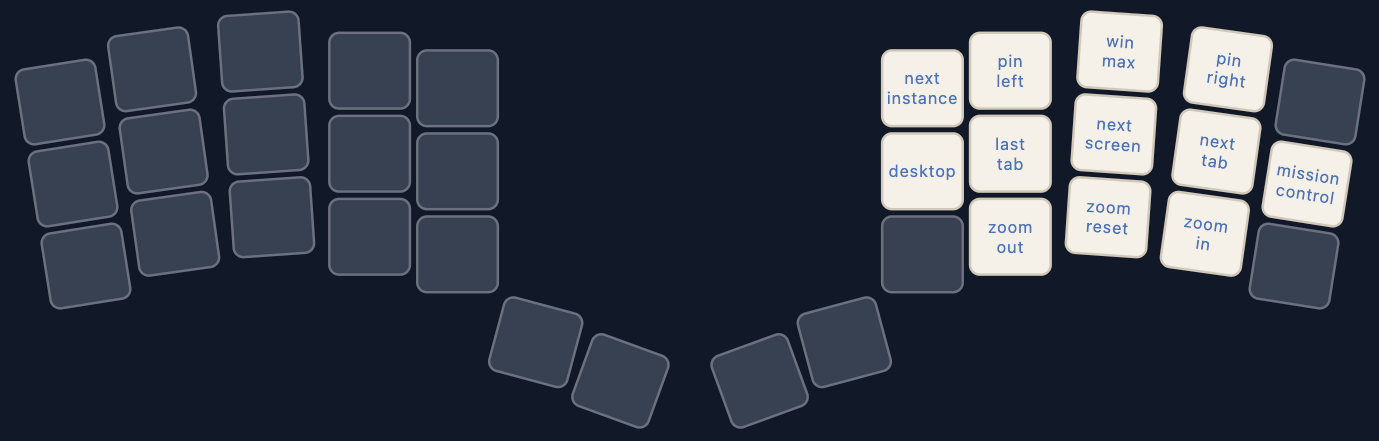
These are not all Window Management behaviours built into oskey… some of them are specific to my keyboard layout and the shortcuts that I’ve defined in Rectangle (an excellent window manager for Mac OS). I tried to make them more generic but the default shortcuts used for many of these things in Mac OS require you hold down the fn key… which isn’t a modifier key so I wasn’t able to get this to work in ZMK.
In the end, I admitted that I’m going to have to keep using Rectangle, so this layer is a bit proprietary I’m afraid. Is you’re interested, you can look at the source for my keyboard.
App layer
The next layer that deserves some comment is the APP layer.
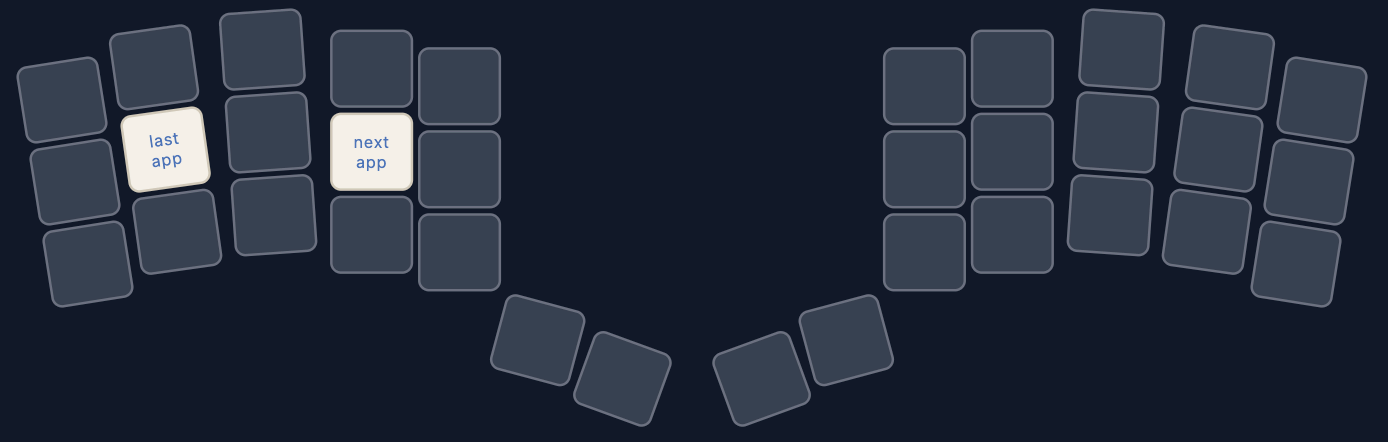
It’s only got two actions on it, but I perform those actions so frequently (and the shortcuts are different depending on the OS), so I wanted to get it working.
Essentially the actions are:
| Action | Windows | Mac | Linux |
|---|---|---|---|
| Next app | Alt + Tab | ⌘ + Tab | Alt + Tab |
| Previous app | Alt + Shift + Tab | ⌘ + Shift + Tab | Alt + Shift + Tab |
However, the behaviour is a bit unique. Typically when you perform this action you would hold down the modifier (Alt on Windows and Linux and ⌘ on Mac OS)… then you’d press the Tab key. This would open a kind of Carousel menu over the top of all the other windows and highlight the next application in that menu (the most recently used app that is not the currently active application).
As long as you keep the modifier key held down, the app switch menu remains active and you can keep pressing tab to continue to cycle through progressively less and less recently active applications. Or, you can press Shift + Tab to cycle back in the opposite direction.
To make that work, I had to build a new custom behaviour for oskey: the os-layer-mod behaviour. This one is kind of like a layer tap behaviour, but when the hold behaviour is activated, it also holds an operating system specific modifier down until the key is released. So when I hold the APP layer key down (the y key on my keyboard) it both activates the APP layer and holds down either the ⌘ key or the Alt key (depending on the operating system).
Again then, the end result is that the key sequences that I press are the same but I see the same behaviour, regardless of which Operating System I’m using. Yay!
Closing notes…
There are a couple of other random OS agnostic behaviours that you’ll find on the other layers, but that covers the main ones… Most of what you’ll need should come out of the box with oskey, but it’s also pretty trivial to add your own as/when you need.
If you do end up using oskey, think of adding a star to the repository - it let’s me know I’m not typing these blog posts into the void and that potentially I’ve scaled the impact of my work beyond a single person… which is always encouraging.
It’s worth noting that I’m somewhat abusing oskey at the moment. I’m using the ‘Linux` OS on my keyboard to connect to my phone in Android Desktop Mode. I suspect I’m going to have to add Android as a fourth operating system to oskey… since I don’t think the shortcuts are consistent between Android and Linux. I don’t use either Linux or Android Desktop Mode enough for this to be a priority yet though… so I’m kicking that can down the road.
I also haven’t heavily tested all of these on Windows, since I spend 9/10 of my time on Mac OS.
So if you’re using these on Windows or Linux and spot things that are broken or could be improved, feel free to raise an issue or start a discussion in the github repo!